Why the Mini 4 Pro Rejects SD Cards
DJI Mini 4 Pro SD card errors have gotten complicated with all the misinformation flying around. As someone who has spent an embarrassing number of hours digging through DJI forums and testing cards on my own drone, I learned everything there is to know about this particular headache. Today, I will share it all with you.
This article includes affiliate links. We may earn a commission at no extra cost to you.
But what is a file system incompatibility, exactly? In essence, it’s a mismatch between how your SD card is formatted and what the drone’s firmware expects to read. But it’s much more than that — it’s also about speed classes, firmware versions, and a few other invisible tripwires that’ll cost you a morning if you’re not careful.
The Mini 4 Pro is picky about formats. Cards over 32GB need exFAT. Anything 32GB or under works fine with FAT32. Here’s the part that trips people up: format a 64GB card in FAT32 on your laptop and the drone won’t touch it. Just sits there, pretending the slot is empty. The reverse causes headaches too — FAT32 cards occasionally get bounced by newer firmware builds.
Speed class is the other culprit. The Mini 4 Pro wants UHS-I Speed Grade 3, which is V30 or higher. Those cheap no-name cards sitting in a discount bin at the checkout counter? They’ll claim compatibility on the packaging. They often don’t have the actual sustained write speeds DJI needs. Your drone detects the mismatch and refuses to mount the card — no dramatic error, sometimes just silence and a blank slot in the DJI Fly app.
Firmware version adds a third layer nobody talks about. An older drone paired with a brand-new high-capacity card will throw rejection errors that seem completely random. I once spent twenty minutes diagnosing a perfectly good SanDisk Extreme 128GB. Turns out the drone was running firmware three versions behind. That was it.
Quick Checks Before You Do Anything Else
Probably should have opened with this section, honestly.
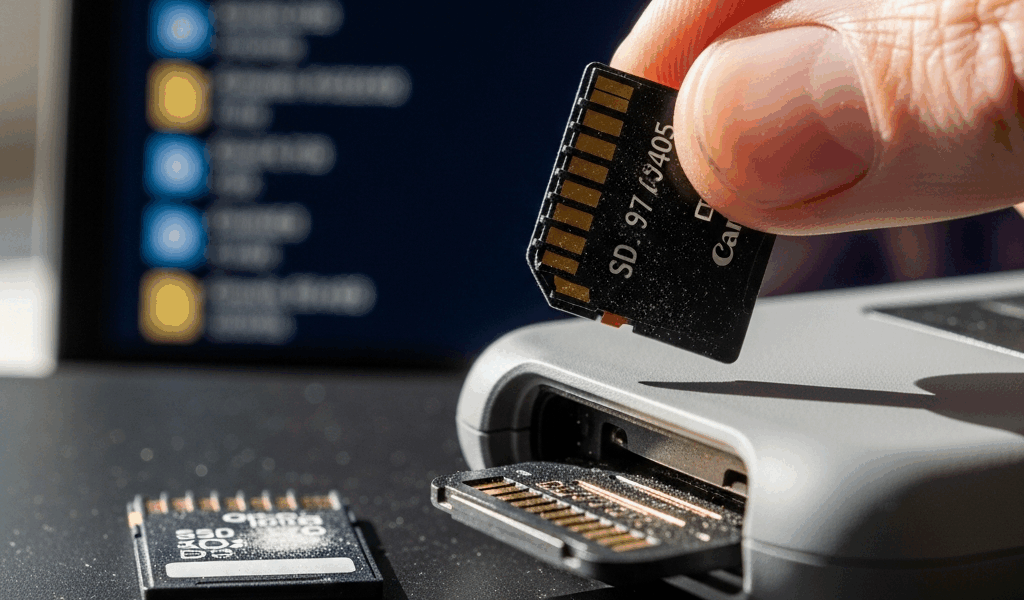
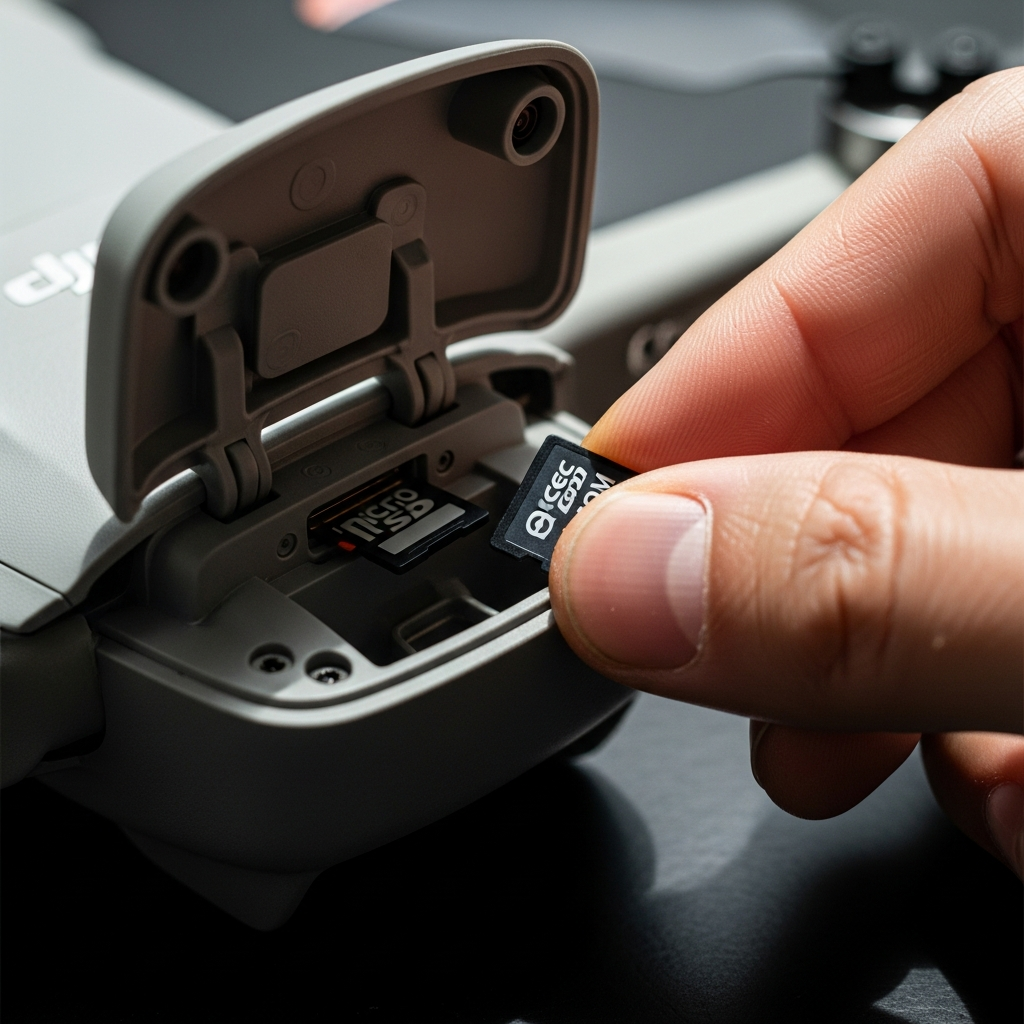
First, you should physically pull the SD card and reinsert it — at least if you haven’t already tried that. Listen for a click. Most cards need to seat all the way into the slot to lock properly. Half-inserted cards trigger rejection errors every single time. While you’re at it, look at the slot itself. Lint and dust collect in there faster than you’d expect, and a bent pin will block any card, even a known-working one.
Check the metal contacts on the card itself. Smudged or oxidized contacts break communication between the card and the drone. Grab a soft, dry cloth — the microfiber kind works best — and wipe both sides of the gold connector strip. No liquids. No scrubbing. Gentle passes only.
Testing with a second card is probably the fastest way to isolate the problem. Borrow a camera card from a friend or grab a cheap 32GB card from Best Buy for around $8. If the second card works, your original card is dead or incompatible. If both cards fail, the issue is the drone itself and you’re heading into firmware territory.
Open the DJI Fly app and actually read the error on screen. Most of the time it tells you exactly what’s wrong:
- “SD Card Not Detected” = card not fully inserted or contacts are dirty
- “SD Card Not Supported” = wrong file format or speed class is too slow
- “SD Card Read Only” = card is locked — there’s a tiny physical switch on the card’s left side
- “Format SD Card” = card is using an unsupported format like HFS+ or NTFS
How to Reformat the Card the Right Way
Formatting erases everything. Back up your footage first. This is not reversible. Don’t make my mistake.
The cleanest method is formatting directly through the DJI Fly app. Insert the card, open the app, tap the hamburger menu, find the storage section, and select “Format SD Card.” The drone handles file system selection on its own. Takes maybe ninety seconds and removes any guesswork.
If that option doesn’t appear — which happens with severely corrupted cards — you’ll need to format on a computer. Here’s where most people go wrong.
On Windows, right-click the card drive in File Explorer, select Format, and set it to exFAT for anything over 32GB or FAT32 for 32GB and under. Quick Format works fine. Leave Allocation Unit Size on Default. I name mine “DJI_MINI4” just for organization — small habit, genuinely helpful when you’re juggling multiple cards.
On macOS, I’m apparently wired to trust default settings and Disk Utility’s default format is Mac OS Extended — which is HFS+ — and the Mini 4 Pro does not support it. That formatting choice works for me on every other device while it never works on DJI drones. Open Disk Utility, select your card, click Erase, and manually change the format dropdown to exFAT. Don’t assume the default is safe. It isn’t.
Reinsert the card after formatting and test it. The Fly app should recognize it immediately. If it still doesn’t, firmware troubleshooting is next.
Firmware and App Conflicts That Cause This
Outdated firmware is a silent saboteur. That’s what makes this problem so frustrating to drone owners — nothing looks wrong until it is. A Mini 4 Pro running firmware version 02.01.0100 might reject a 256GB card that only got officially supported in version 02.03.0500. DJI doesn’t always flag these compatibility changes in the release notes either.
Check your firmware version inside the DJI Fly app: tap the hamburger menu, select your aircraft, look under “Firmware Version.” Pull up DJI’s official support page and compare it against the latest release. Behind by even one version? Connect to WiFi and update now. The drone downloads and installs the firmware automatically — takes about eight minutes.
Partial updates are their own problem. Frustrated by a spotty WiFi connection mid-update, I once ended up with a drone in a weird half-updated state that rejected every card intermittently. The fix is a full re-flash. Connect the drone via USB-C cable to a computer, open DJI Assistant 2, and select “Firmware Recovery.” Wipes the firmware image completely and reinstalls it clean. Five to ten minutes. Clears corruption that standard updates won’t touch.
The DJI Fly app itself can cause false rejections too. An outdated app version sometimes sends incorrect format commands to the drone. Update it through your device’s app store before assuming the hardware is the problem.
SD Cards That Actually Work in the Mini 4 Pro
Not all V30 cards are created equal. So, without further ado, let’s dive in — here’s what I’ve personally tested and seen consistently recommended across user forums.
Samsung PRO Plus (256GB): Reliable, fast, fully compatible. Usually runs $35–45. Look for the V30, U3, and A2 markings on the packaging. That combination is your assurance of real-world speed, not just marketing copy.
SanDisk Extreme (128GB): Popular in drone circles for its price-to-performance ratio. Around $20. Make sure it says “Extreme” — not “Ultra.” The Extreme has the V30 spec. The Ultra sometimes doesn’t, depending on the version, which is an annoying product naming choice on SanDisk’s part.
Lexar SILVER Series (256GB): Less common but excellent. Runs $40–50 depending on where you buy it. Lexar cards tend to show slightly faster sustained write speeds than competitors at the same price — useful when you’re shooting 4K/60fps clips back to back.
On packaging, you want V30 at minimum, U3, and ideally A2 or A1. Skip any generic off-brand card marketed as “high speed” or “fast.” Marketing language doesn’t equal actual write performance. The drone will find out.
If none of this restores card recognition, the slot itself may have physical damage — a bent pin or internal contact corrosion. That requires hardware repair. Contact DJI support with your serial number and purchase proof. They’ll either cover it under warranty or quote a replacement cost. Either way, you’ll have a clear path forward.


Stay in the loop
Get the latest light drones updates delivered to your inbox.