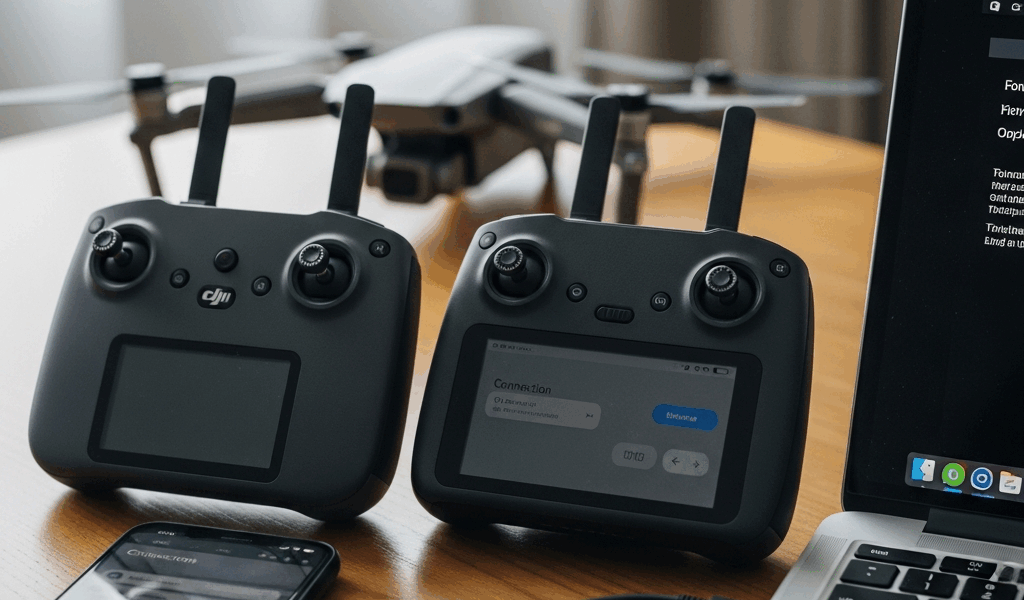
Why the Mini 4 Pro Loses Connection in the First Place
DJI Mini 4 Pro connection problems have gotten complicated with all the vague “try restarting everything” advice flying around. So let me cut through it. There are four actual culprits: a failed USB-C cable, a firmware version mismatch between the drone and controller, corrupted pairing data on one or both devices, or the DJI Fly app choking on the connection handshake. Most fixes take under five minutes. You’re not looking at a hardware replacement or a full factory reset — at least not in 95% of cases.
This article includes affiliate links. We may earn a commission at no extra cost to you.
I’ve walked this troubleshooting path dozens of times across both the RC-N1 and RC 2 variants. I know exactly where people go wrong. They skip the firmware check entirely and burn 30 minutes re-pairing when a 90-second update would’ve solved it. Don’t make my mistake. So, without further ado, let’s dive in.
Step 1 — Check the Cable and USB Port First
If you’re on the RC-N1 controller, the USB-C connection is your weak link. The RC-N1 doesn’t have a built-in display or wireless link to your phone — it connects via USB-C, and that cable is where roughly 70% of connection failures live. I learned this the hard way after buying three cheap third-party cables off Amazon. They worked for about a month before failing silently. No error message. No warning. Just nothing.
Don’t wiggle the cable around hoping for a miracle. Swap it out completely. Use the original DJI cable if you’ve still got it, or grab something actually rated for data transfer — not just charging. The Anker USB-C to USB-C Cable (100W, 10ft) runs about $14 and holds up — it handles both data transfer and charging without the silent failures you get from cheap cables. While you won’t need any special tools, you will need a flashlight and something thin like a toothpick to check for lint packed into the USB-C port. It accumulates faster than you’d think, especially in jacket pockets.
RC 2 users can mostly skip the cable drama since that connection is wireless. But verify your controller is fully charged before moving forward. A controller sitting below 10% battery will sometimes refuse to pair even when everything else is fine — and that particular quirk has confused a lot of people.
Re-Pairing the Controller to the Drone
Once the cable or battery situation is off the table, re-pairing is the next move. Here’s the exact process for both controller types.
RC-N1 Controller
- Open the DJI Fly app and navigate to Settings → Controller → Disconnect.
- Power off the drone completely. Wait 10 seconds — actually wait, don’t just tap the button and immediately turn it back on.
- Power the drone back on and watch the LED. Yellow blinking first, then solid green. Takes about 20 seconds.
- On your phone, open Bluetooth settings and forget the RC-N1 if it shows up there.
- Plug the USB-C cable into the RC-N1 and your phone. The app should detect the controller on its own.
- Tap Confirm when prompted. The LED on the RC-N1 blinks white, then goes solid green when pairing finishes.
RC 2 Controller
- Power on the drone. Wait for yellow blinking, then solid green on the LED.
- Power on the RC 2. Hold the power button for a full three seconds.
- In DJI Fly, go to Settings → Controller and select your controller model.
- Tap Re-pair. A confirmation prompt will appear on the controller screen.
- Press and hold the Pairing Button — small button on the back near the antennas — for five seconds until the LED blinks white.
- Solid green LED means it worked. The whole process usually takes 15–30 seconds.
Here’s the part worth underlining: re-pairing fixes corrupted pairing data. It does not fix firmware version mismatches. If the connection drops again within a few minutes of re-pairing, you’re almost certainly dealing with a firmware sync problem. Skip ahead to the next section before you lose another 10 minutes going in circles.
Firmware Mismatch — The Fix Most Guides Miss
Probably should have opened with this section, honestly. After a DJI Fly app update rolls out, the drone firmware and controller firmware don’t always update together. You end up with a controller sitting on version 1.3.2 while the drone is running 1.3.5 — and they simply refuse to communicate. That’s the hidden root cause most generic troubleshooting articles never mention.
But what is a firmware mismatch, exactly? In essence, it’s two devices speaking slightly different versions of the same language. But it’s much more than a technical annoyance — it’s the kind of thing that makes re-pairing look like it “almost worked” before the connection drops again 90 seconds into your flight.
Check Drone Firmware
- Open DJI Fly.
- Tap the Settings gear icon in the top right corner.
- Find Firmware Version — it’ll show something like “v09.24.00.00”.
- The controller firmware version appears just below. Write both numbers down.
Check Controller Firmware
The controller firmware shows up in the same Settings menu under “Remote Controller Firmware.” If the drone’s version number is higher than the controller’s, you’ve found your problem. That mismatch is what’s killing the connection.
Force Update the Controller
- In DJI Fly Settings, tap Remote Controller.
- If an update is available, a Firmware Update button will appear there.
- Make sure the controller is fully charged and either has a solid USB connection (RC-N1) or strong WiFi (RC 2) before starting.
- Tap Update Now. Do not disconnect anything during this process. It takes 2–5 minutes.
- The controller restarts automatically. Wait for the LED to return to solid green before touching anything.
I’ve watched users spend a full hour re-pairing before anyone thought to check firmware — only to find the controller was two full versions behind the drone. Two minutes of updating solved what felt like a hardware failure. That’s what makes firmware troubleshooting so endearing to us drone owners: it’s almost always the fix nobody checks first.
Still Not Connecting — Last Resorts Before Contacting DJI
If firmware is synced, the cable has been swapped, and re-pairing didn’t hold, run through these steps before calling it a hardware issue.
Clear and Reinstall DJI Fly
- Uninstall DJI Fly completely. Not just close it — uninstall.
- Go to Settings → Apps (or Storage on some Android builds) and hunt down any leftover DJI Fly cache files. Delete them.
- Reinstall DJI Fly fresh from the Google Play Store or Apple App Store.
- Launch and attempt pairing from scratch.
Try a Second Device (RC-N1 Only)
I’m apparently an Android person and a Samsung Galaxy S23 works for me while my older OnePlus never handled the RC-N1 reliably. If you’ve got access to another phone or tablet, plug the RC-N1 into that device instead. This isolates whether the issue is device-specific interference or an actual controller hardware problem. That distinction matters a lot before you spend money on anything.
Hardware Warranty and DJI Refresh
If nothing above has worked, the controller or drone likely has a hardware fault. DJI Refresh runs around $40–$80 depending on your coverage tier and handles both accidental damage and hardware failures within a two-year window. If you’re still under standard warranty, contact DJI Support directly — have your serial numbers ready and shoot a short video of the failed pairing attempt. Response times typically run 24–48 hours.
Most people solve this long before reaching this section. A bad cable, a firmware gap, or corrupted pairing data covers the overwhelming majority of Mini 4 Pro connection failures. Pick the fix that matches your symptoms and you’ll probably be airborne again inside of 10 minutes.


Stay in the loop
Get the latest light drones updates delivered to your inbox.