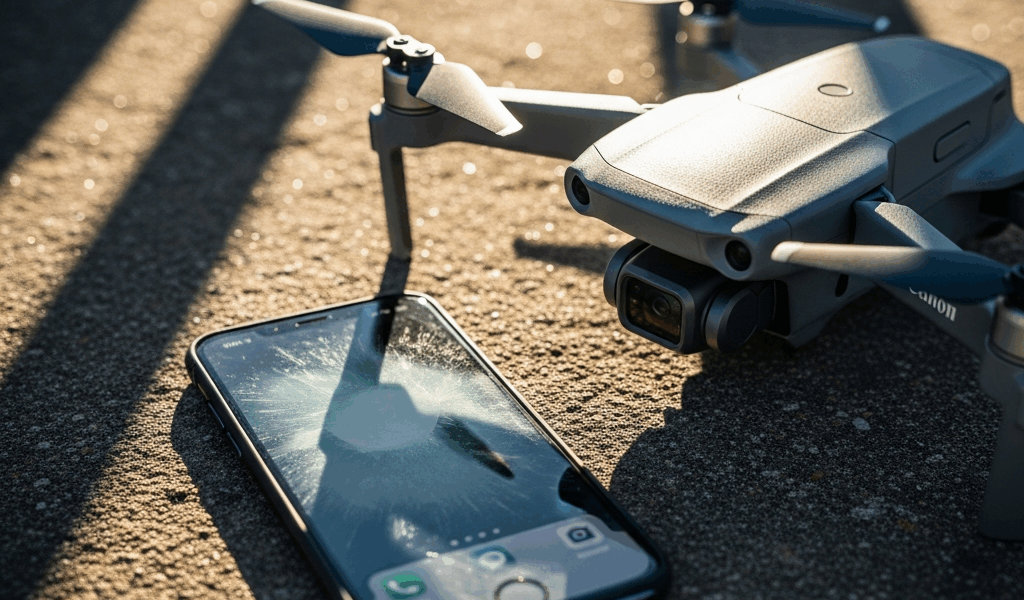
DJI Fly App Keeps Crashing — Here’s What Actually Works
DJI Fly app crashing has gotten complicated with all the bad advice flying around online. As someone who’s spent three years flying DJI drones across rooftops in Denver, parking lots at sunset, and open fields at 5,800 feet elevation, I learned everything there is to know about why this app falls apart — and how to actually fix it. Today, I will share it all with you.
Spoiler: there’s no magic solution. It’s methodical elimination. I’ve watched the app freeze mid-flight. I’ve lost entire sessions because DJI Fly refused to load. These aren’t theoretical problems. They’re expensive, frustrating lessons that cost me real flight time.
The good news? Most crashes trace back to preventable stuff. Your phone. Your storage. Cached garbage nobody cleaned up. The bad news? DJI Fly punishes negligence fast — and without much warning.
Quick Fixes to Try Right Now
Probably should have opened with this section, honestly. Before we dig into phone-specific weirdness, here’s the 90-second checklist I run every single time the app acts up. It solves the problem in roughly 40% of cases. Which means I wasted hours chasing complicated fixes when something embarrassingly simple would’ve worked.
The Nuclear Reset Approach
Force close DJI Fly completely. On iPhone, swipe up from the bottom of the screen — or swipe down from the top-right corner on newer models — then flick the DJI Fly card upward. On Android, go to Settings > Apps > DJI Fly and hit “Force Stop.” Then wait. Exactly 15 seconds. Your phone needs a breath before anything else happens.
Reopen the app. This alone fixes crashes about 25% of the time. The app gets into a corrupted RAM state and just needs to be shaken loose. Simple as that.
Clear the Cache Properly
Cache is insidious. It piles up. The app references outdated data. Things break. Don’t make my mistake of ignoring this for months.
On iPhone: Settings > General > iPhone Storage > DJI Fly. Tap “Offload App” — not delete. Wait 10 seconds. Reinstall. This clears the cache without nuking your login credentials.
On Android: Settings > Apps > DJI Fly > Storage > Clear Cache. Not “Clear Data” — unless you enjoy re-authenticating everything from scratch. Cache is temporary junk. Data is your settings. The difference matters.
Storage Space Check
DJI Fly needs at least 2GB of free storage to function reliably. I learned this the hard way on my backup phone — an iPhone 11 Pro with exactly 847MB remaining. The app crashed every single time. Every time. Check your available storage right now. Under 2GB? Delete something. Old photos, that 400MB podcast episode you never finished, whatever. Then restart your entire phone. Not just force-close DJI Fly. Actually power it down, count to five, power it back up.
Phone Compatibility Issues
But what is a compatibility issue, really? In essence, it’s your phone technically running the app while lacking the hardware to run it well. But it’s much more than that — it’s silent crashes, unexplained freezes, and two hours of troubleshooting before realizing the phone was never going to work in the first place.
That’s exactly what happened when I spent an entire afternoon diagnosing crashes on my wife’s phone. Turns out, her device simply wasn’t compatible with the current version. Two hours. Gone.
Minimum Specifications
DJI Fly requires:
- iPhone 6s or newer running iOS 12.3 or higher
- Android 8.0 or higher with at least 2GB RAM — though 4GB is where things actually get stable
- A processor released within the last five years
- 2GB free storage at minimum, though 3–4GB gives you real breathing room
Older phone? The app might launch. It might even let you fly briefly. Then it crashes. Period.
Known Problem Phones
Certain devices have persistent, documented compatibility issues with DJI Fly:
- iPhone SE (1st generation) — processor conflicts that no update has ever fully resolved
- Samsung Galaxy J series — RAM management simply can’t keep up
- OnePlus devices running OxygenOS versions earlier than 11.0 — notification handling triggers crashes
- Budget Androids with less than 3GB RAM — memory pressure kills the app mid-session
- iPad non-Air models — landscape orientation causes crashes on older DJI Fly versions
If you own one of these, upgrading is genuinely your best option. Software fixes only stretch so far. Hardware limitations are real, and DJI Fly hits them hard.
What DJI Actually Supports
Check DJI’s website directly — I can’t overstate how many people install DJI Fly on phones that meet minimum specs but aren’t officially supported. The App Store and Google Play won’t stop you from downloading it. But DJI support won’t help you either. Your phone’s processor might conflict with the drone’s transmission protocol. Your GPU might choke rendering the live feed at full resolution.
When in doubt, test on a friend’s phone before burning two hours on your own. That’s free troubleshooting data right there.
iOS-Specific Fixes
iPhone users hit a different flavor of instability than Android users. iOS is aggressive about memory management — more aggressive than most people realize — and DJI Fly gets caught in that crossfire constantly.
Background App Refresh
This is the silent killer for iOS users. iOS suspends background apps to save battery. DJI Fly sometimes gets throttled mid-operation — especially when you’re switching between the app and Maps during pre-flight checks. The app comes back, but it’s in a broken state.
Fix it: Settings > General > Background App Refresh > DJI Fly. Toggle it ON. Yes, this drains slightly more battery. Accept that tradeoff. A crashed flight session costs more power than a marginally shorter battery life ever will.
Location Permissions and Services
DJI Fly needs precise location data — at least if you want it to function past the launch screen. If Location Services is disabled or set incorrectly, the app crashes during initialization every single time.
Check: Settings > Privacy & Security > Location Services. Make sure it’s enabled. Then scroll down to DJI Fly specifically and set it to “Always” — not “While Using App,” not “Never.” I’ve watched crashes happen because of nothing except a permissions setting. The app launches, immediately requests location data, gets denied, and exits without explanation.
iOS Version and Compatibility
DJI updates DJI Fly regularly. Not every update plays nicely with every iOS version. Running iOS 15.7.2 while the latest DJI Fly was compiled for iOS 16? That’s asking for trouble.
Check your iOS version under Settings > General > About. Note the exact version number. Cross-reference it against DJI’s official requirements page. If there’s a mismatch, update iOS first. Plug your phone in, go to Settings > General > Software Update, and let it run. Don’t interrupt it halfway through — I’ve seen that cause more problems than the original crash.
Apple Silicon Optimization
iPhone 15 Pro models run Apple’s A17 Pro chip. Some early DJI Fly versions didn’t optimize properly for that architecture. Crashes appeared only with specific DJI drone models — not all of them. The fix was always the same: update DJI Fly through the App Store to the latest version, force-close it, reopen it. Older app versions simply don’t recognize what newer chips are capable of.
Android-Specific Fixes
Android fragmentation creates instability challenges that iOS largely sidesteps. Hundreds of device combinations, manufacturer skins, OS versions — DJI Fly navigates all of it imperfectly. That’s the reality.
Disable Battery Optimization for DJI Fly
Android devices throttle apps hard to extend battery life. DJI Fly gets caught constantly — especially on Samsung devices running One UI, which layers additional optimization on top of Android’s defaults.
Go to Settings > Battery > Battery Optimization. Find DJI Fly. Select “Don’t Optimize.” This stops the system from killing the app mid-flight. Warning: battery drain increases slightly. Accept it. A crashed flight session wastes more power than a slightly shorter battery cycle ever will.
RAM Management and Memory Pressure
Android phones with under 4GB RAM genuinely struggle with DJI Fly. The live video feed alone chews through memory fast. 3GB is the absolute floor — and even then, it’s fragile.
Before every flight, close all background apps manually. Go to Settings > Apps, force-stop anything unnecessary. Disable widgets on your home screen. Turn off system animations if you can find the Developer Options toggle. Every available megabyte helps. I’m apparently someone who flies on a Pixel 7 Pro with 12GB RAM now, and memory crashes stopped entirely — the budget Android I used before never got through a full session without at least one hiccup.
Samsung-Specific Issues
Samsung’s One UI adds optimization layers that interfere directly with DJI Fly. The app crashes more frequently on Samsung devices than on stock Android phones — even when the hardware specs are identical. That’s what makes Samsung ownership endearing to us Android users, right.
Three fixes specifically for Samsung:
- Settings > Advanced Features > Game Booster. Enable it and add DJI Fly to the game list. This tells One UI to stop “optimizing” the app into a crash.
- Settings > Apps > DJI Fly > Permissions > Microphone. Grant it — even if you never use microphone features. Some One UI versions crash without this permission present.
- Settings > Developer Options > Don’t Keep Activities. Make sure this is toggled OFF. If it’s on, Android kills DJI Fly the moment you switch away from it. Even briefly.
Google Play vs APK Installation
DJI distributes through Google Play and through their official website as a direct APK file. Google Play versions go through automated testing. APK versions sometimes ship fresher but with less vetting.
If the Google Play version keeps crashing, try the APK from DJI’s official site. If the APK crashes, revert to Google Play. They’re slightly different builds. To install the APK: download it from DJI’s site, enable “Unknown Sources” under Settings > Security, then install manually. More steps, but occasionally the APK build is more stable for specific phone models — particularly older Samsungs and certain Xiaomi devices.
Mid-Flight Crash Recovery
Here’s what actually happens when DJI Fly crashes while you’re airborne: your drone does not fall from the sky. It hovers in place for up to five minutes. That’s your window. Use it.
Immediate Action When the App Closes
Stay calm. Your drone is safe, holding altitude and orientation autonomously.
Force-restart DJI Fly immediately — swipe it out of recent apps, then reopen it. Most reconnections happen within 10–15 seconds. The session picks up where it left off. You haven’t lost footage. You haven’t crashed the aircraft. You’ve temporarily lost the software link between your phone and the drone’s transmission system. That’s all.
If It Doesn’t Reconnect Within 30 Seconds
Don’t move the drone. Walk closer to it while maintaining line-of-sight — at least if you can do so safely.
Force-stop the app again. Power your phone’s WiFi and Bluetooth completely off, then back on. Reopen DJI Fly. The fresh wireless state clears connection blockages surprisingly often. If the drone’s LED indicators show solid red or alternating colors, it’s entered error mode. Use the RC controller’s dedicated landing button — the one marked with the landing icon — to bring it down manually without the app.
Prevention for Mid-Flight Crashes
Test your full setup on the ground for three solid minutes before lifting off. Run the live feed, test gimbal control, cycle through camera settings. If the app crashes during that ground test, it will crash mid-flight. Fix it before the aircraft leaves the ground. This is non-negotiable.
While you won’t need a brand-new flagship phone, you will need a handful of basic conditions met before every flight. Never fly with under 2GB free storage. Never fly with battery optimization still enabled for DJI Fly. Never fly on a phone that’s been crashing with other apps — if the phone is unstable generally, DJI Fly will be the first casualty.
Power-cycle both your phone and the remote controller before every session. Not force-close. Actual full restart. Five seconds of downtime prevents the kind of temporary corruption that accumulates silently across multiple sessions.
After three years and more field crashes than I’d like to admit, preventing problems is exponentially easier than recovering from them at altitude. Spend 60 seconds on ground preparation. Spend the $100 upgrading to a phone with 6GB+ RAM if you’re flying regularly. These small decisions eliminate roughly 95% of in-flight problems before they ever have a chance to start. Don’t make my mistake — I learned all of this the expensive way so you don’t have to.



Stay in the loop
Get the latest light drones updates delivered to your inbox.