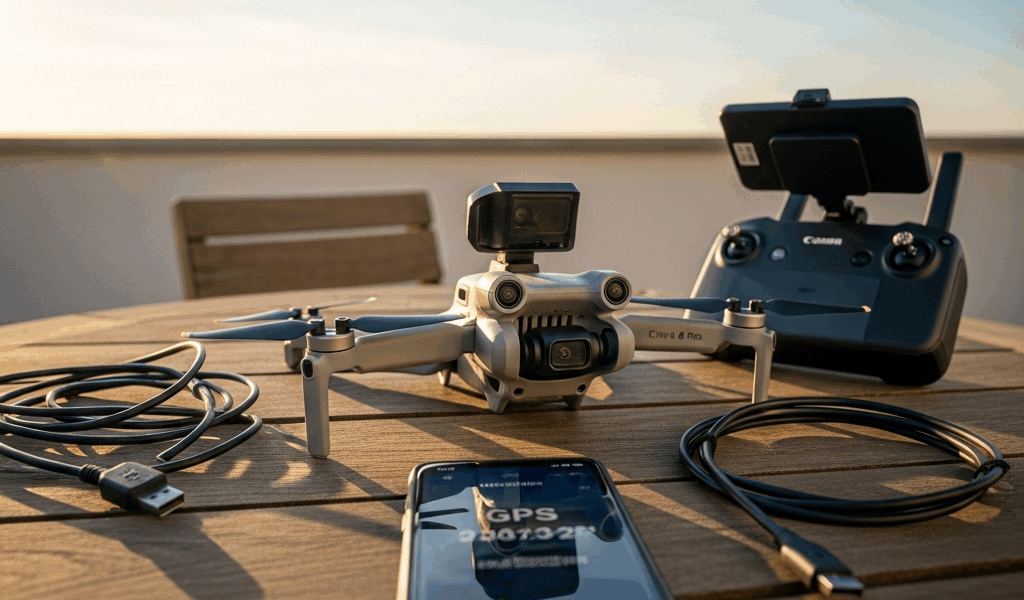
Why RTH Fails — The Short Version
RTH troubleshooting has gotten complicated with all the conflicting advice flying around. As someone who’s stood in a park watching a Mini 4 Pro hover mid-air like a confused hummingbird — RTH button mashed repeatedly, doing absolutely nothing — I learned everything there is to know about why Return to Home fails. Today, I will share it all with you.
But what is RTH, really? In essence, it’s three separate systems that all have to fire simultaneously. But it’s much more than a simple “come back” button. The drone needs GPS lock. It needs the home point saved and confirmed in memory. And it needs enough signal strength to either receive the RTH command or autonomously execute one when the link drops. Miss any single piece, and that button becomes a paperweight icon on your phone screen. So, without further ado, let’s dive in — ranked by how often each issue is the actual culprit, not alphabetical order.
Fix 1 — Home Point Was Never Actually Set
This is the one. Genuinely. Skipping the home point setup is probably the single most common reason the RTH button does nothing useful.
Here’s what happens: you power on the Mini 4 Pro, launch it fast, and assume the home point locks automatically. It doesn’t — not like that. The drone needs at least 10 GPS satellites acquired and a solid few seconds of stationary hover post-takeoff before the home point actually registers in memory.
Rushing a launch near shade, tree cover, or tall buildings kills this before it starts. I learned this the hard way during my first month flying — launched from underneath a parking garage overhang and kept wondering why RTH appeared greyed out. It wasn’t greyed out. It was just pointing at nothing.
How to confirm home point is set: Open DJI Fly, tap the map icon at the bottom of the screen, and look for a small house marker. See it? Home point is locked. See nothing — or a faded icon with a question mark — and the drone is still waiting for a GPS lock solid enough to trust.
The fix: Power on both the drone and the RC2 controller. Wait until DJI Fly shows 12–15 satellites acquired — not just “GPS ready,” but the actual number sitting in the status panel. Hover in an open area for 5–8 seconds without moving. The home point marker should appear on your map. Check it again before you go anywhere.
Flying in an urban canyon or dense forest? Your satellite count might cap out around 8–9. That’s honestly not enough for reliable RTH. Move to a soccer field, empty parking lot, or any clearing — and let the drone sit for a minute.
Fix 2 — GPS Signal Is Too Weak to Navigate Home
This one trips people up constantly. “GPS acquired” and “GPS strong enough” are not the same thing — that’s what makes GPS signal strength so frustrating to diagnose for most pilots.
The Mini 4 Pro can show 10 satellites locked and still lack the positional accuracy needed to navigate home cleanly. Flying near cliff faces, between skyscrapers, or under tree canopy delivers satellite signals — but bounced, scattered ones. The drone sees numbers but can’t determine direction reliably.
Frustrated by weak GPS during RTH, the drone typically does one of two things: it climbs to the set RTH altitude and drifts sideways, or it switches into ATTI mode — Attitude mode — flying on accelerometer and compass alone. In ATTI mode, RTH doesn’t function the same way. The drone moves in roughly the right direction. It loses altitude. It guesses.
How to spot weak GPS signal: In DJI Fly, find the signal strength indicator near the top of the screen. It displays something like “GPS 10/5” — ten satellites, signal strength level five. If that second number drops below 3, or if an ATTI indicator appears anywhere on screen, your GPS is too weak for RTH to work properly. Yellow or orange GPS warning icons mean the same thing.
The fix: Move to open ground. Away from buildings, trees, power lines, bridges — all of it. I’m apparently sensitive to tree interference specifically, and moving just 50 feet from a dense grove restored full signal strength while staying inside that grove never worked. Hover stationary for a minute. Watch the satellite count climb and the signal bars fill in. Solid green, 15-plus satellites — then you’re good.
Stuck flying in a weak GPS area? Set a low RTH altitude, stay physically close to your home point, and don’t rely on RTH as your safety net. Don’t make my mistake.
Fix 3 — RTH Altitude Is Set Too Low or Too High
RTH altitude is the height the drone climbs to before it navigates home. Set it wrong and RTH either fails silently or the drone starts behaving erratically. Both outcomes feel equally confusing.
Too low: RTH altitude set at 50 meters with a 60-meter hill sitting between the drone and home. The Mini 4 Pro climbs to 50 meters, points toward the home point, and immediately aims at an obstacle. It won’t necessarily crash — obstacle avoidance catches it — but it won’t come home either. It hovers. Waits. Drains battery.
Too high: RTH altitude set to 500 meters in airspace capped at 400 feet. The drone refuses to ascend past the restriction. RTH won’t trigger. You’ll see an error message or the button stays inactive entirely.
Where to change it: Open DJI Fly, tap Settings — the three horizontal lines in the bottom right corner — then select “Flight” or “Safety,” and find “Return to Home Altitude.” The default is typically 30 or 50 meters. I set mine to 80 meters as a personal rule of thumb. High enough to clear most real-world obstacles. Low enough to stay in reasonable airspace and not hemorrhage battery climbing.
80 meters might be the best starting point, as reliable RTH requires clearing whatever sits between you and home. That is because the drone flies a straight horizontal line back — it doesn’t contour terrain or dodge hills automatically. Use this logic: add at least 20 meters above whatever the tallest obstacle is along that return path. Flat terrain with no trees? 30–40 meters works fine. Hilly or wooded area? Bump it to 100 meters or higher without hesitation.
Fix 4 — Firmware Bug or App Glitch Blocking RTH
Probably should have opened with this section, honestly. Sometimes the problem isn’t a GPS issue, an altitude setting, or a missing home point. Sometimes the RTH button is just broken by software.
RTH can become completely unresponsive after an app crash, a partial firmware update, or a known bug in a specific DJI Fly release. The button exists on screen. It does nothing. Or the RC2 controller’s physical RTH button — the dedicated one, not the app — triggers no response whatsoever. That was happening on firmware version 01.01.0500, which rolled out in late 2023 and caused headaches for a few weeks before DJI patched it.
Quick fixes in order:
- Force-close DJI Fly completely. On iOS, swipe up from the home indicator. On Android, go to Settings > Apps > DJI Fly > Force Stop. Reopen and test RTH again immediately.
- Check for firmware updates. In DJI Fly, navigate to Settings > About > Check for Updates. Install pending updates for both the Mini 4 Pro and the RC2 controller — separately, fully, without interruption.
- Restart both the drone and controller. Power off, wait a full 10 seconds, power back on. Clears temporary glitches surprisingly often.
- Re-pair the controller and drone if RTH still won’t respond — go to Settings > Controller and re-bind from scratch.
When to contact DJI support: If you’ve worked through all four fixes above, GPS is strong at 15-plus satellites, home point is confirmed on the map, RTH altitude is set reasonably, and the button still does nothing — you’re looking at a hardware fault or a firmware issue beyond your control. Contact DJI support directly with the drone’s serial number, a screenshot of the DJI Fly status screen showing your current readings, and the exact firmware version string. They’ll either push a targeted patch or arrange a repair. Either way, document everything before you call.



Stay in the loop
Get the latest light drones updates delivered to your inbox.