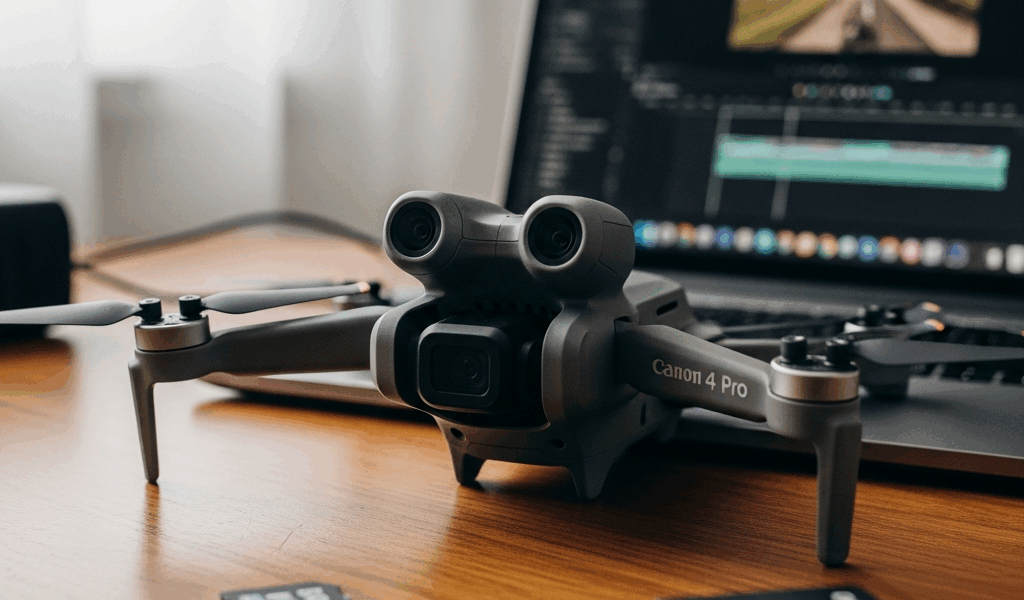
Why Mini 4 Pro Video Stutters in the First Place
Mini 4 Pro video stuttering has gotten complicated with all the misinformation flying around. Everyone blames the drone itself. The drone is fine. As someone who has spent way too many hours crawling through DJI forums and support threads at midnight, I learned everything there is to know about what actually causes this. Today, I will share it all with you.
The real culprits? Almost always three things ganging up at once. An SD card that can’t keep pace with write speed demands. Video cache mode quietly burning bandwidth in the background — something most owners never even know exists. And encoding settings that flat-out exceed what your storage can handle. That’s the pattern I keep seeing. Over and over.
Here’s what’s happening in real time during a problem flight. Your Mini 4 Pro is pushing footage at a bitrate your card physically cannot sustain. Meanwhile, DJI Fly might be caching video data silently in the background. Add H.265 encoding at 60fps on a card that’s 85% full — and the write buffer starts dropping frames. Playback looks fine on the drone’s screen because it’s pulling from RAM. The saved file, though? Stuttering mess.
Step 1 — Check Your SD Card Speed Class First
Start here. A bad card defeats everything else you try.
But what is UHS Speed Class 3? In essence, it’s the minimum rating the Mini 4 Pro needs to record 4K without dropping frames. But it’s much more than a label — it guarantees sustained write speeds of at least 30 MB/s, which is the bare floor for this drone. Look for the U3 marking. Video Speed Class V30 is even better. Same 30 MB/s floor, just a different certification system.
I learned this personally with a leftover Kingston card from 2019 — 128GB, looked totally fine, passed every visual check. It was V10. Six-minute 4K clips turned into choppy disasters. Grabbed a SanDisk Extreme, usually $25–35 for 128GB at most retailers, and the problem vanished immediately. Samsung PRO Endurance works too, though it runs closer to $45. Lexar Professional 1000x is another solid option if you want something future-proof.
One critical thing most people skip — and I mean most — reformat the card inside DJI Fly, not on your computer. Formatting on Windows or Mac leaves fragmentation patterns that genuinely slow write performance. In DJI Fly, go to Settings → Storage → Format SD Card. The drone formats it correctly. Also: keep at least 20% free space at all times. A nearly full card stutters even when it’s technically fast enough. That’s what makes storage management so endearing to us Mini 4 Pro owners — it’s never just one thing.
Step 2 — Turn Off or Adjust Video Cache Mode
Probably should have opened with this section, honestly.
Video Cache is a feature almost nobody knows about. It runs invisibly on most Mini 4 Pro setups by default, pre-processing footage so the DJI Fly app can stream it faster to your phone. Sounds helpful. In practice, it means your SD card is juggling two write tasks simultaneously — saving the raw video and writing a compressed preview cache. That split demand is enough to cause stuttering on marginal cards. Or even decent cards on a rough day.
Open DJI Fly and tap Settings — the gear icon, bottom right. Scroll to Video Cache. It’s probably set to Standard or High. Toggle it completely off first. Then fly, record a short 90-second clip, and play it back on your phone and your computer. If stuttering stops, that was your problem. Done. No need to read further.
Some pilots want to keep cache running for faster app playback — I get it. If that’s you, drop the cache resolution from High to Low rather than disabling it entirely. Low-resolution cache still consumes write bandwidth, just far less. Worth testing both options before messing with encoding settings.
Step 3 — Lower Your Bitrate or Switch Encoding Format
This is where eyes start glazing over. Codec talk sounds technical. It’s really not.
H.265 is newer — smaller file sizes, more efficient compression — but it demands significantly more processing from your SD card during write operations. H.264 is older, produces fatter files, but the Mini 4 Pro handles it far more forgivingly under stress. If you’re recording 4K 60fps H.265 and experiencing stuttering, the codec itself might be the bottleneck. Not the drone. Not the settings. Just the format mismatch with your card.
So, without further ado, let’s dive in to actually fixing it. In DJI Fly, tap the camera icon before you fly. Find Resolution and Frame Rate. If you’re at 4K 60fps, drop it to 4K 30fps and flip from H.265 to H.264 as a diagnostic test. Record three or four minutes. Import the file to your actual computer — not just the phone app — and scrub through the whole thing. Stuttering gone? Your card and phone combo genuinely can’t sustain 4K 60fps H.265. You’ve found it. Staying at 4K 30fps H.264 is still gorgeous footage, and it’s honestly what most Mini 4 Pro owners shoot in anyway.
The underlying numbers: H.265 at ultra-high quality runs roughly 80–100 Mbps. H.264 at comparable quality runs 120–150 Mbps — yes, higher, which seems backward. A V30 card handles up to 240 Mbps in theoretical throughput. That sounds like plenty. But that’s the ceiling, not the floor. Add cache running, a fragmented card, and 87% full storage — and you’re nowhere near that ceiling in actual performance.
Still Stuttering — Check Firmware and Do a Cache Clear
Don’t assume hardware failure yet. Check firmware first.
DJI pushed patches for the Mini 4 Pro addressing specific encoding bugs in early 2024. Open DJI Fly, tap Settings → About, and look for a Firmware Update prompt. If one shows up, connect to Wi-Fi, install it, and restart the app completely. Don’t just background it — fully close and relaunch.
Then clear the DJI Fly app cache on your phone. This is separate from video cache — it’s your phone’s stored app data, and it can bloat over time and slow app performance in ways that look suspiciously like a recording problem. I’m apparently prone to skipping this step and a full app cache clear has saved me twice.
On iOS: Open Settings → General → iPhone Storage → find DJI Fly → tap it → Offload App. Wait about 10 seconds. Tap Reinstall App. This clears cached data without wiping your flight records or login.
On Android: Open Settings → Apps → DJI Fly → Storage & Cache → Clear Cache. Don’t tap Clear Data — that wipes your login credentials. Just cache.
Reboot your phone fully. Launch DJI Fly fresh and test a real flight. If stuttering persists after all of this — firmware current, SD card passes speed tests, cache disabled, encoding lowered — the gimbal board or image processor may have developed an actual hardware fault. I’ve seen it twice in roughly two years of following this stuff closely. It happens. Software can’t touch it. Contact DJI Support directly with your serial number and a sample video file showing the issue. They’ll almost certainly replace the drone under warranty. Don’t make my mistake of spending three weeks chasing software fixes on a hardware problem.

Stay in the loop
Get the latest light drones updates delivered to your inbox.