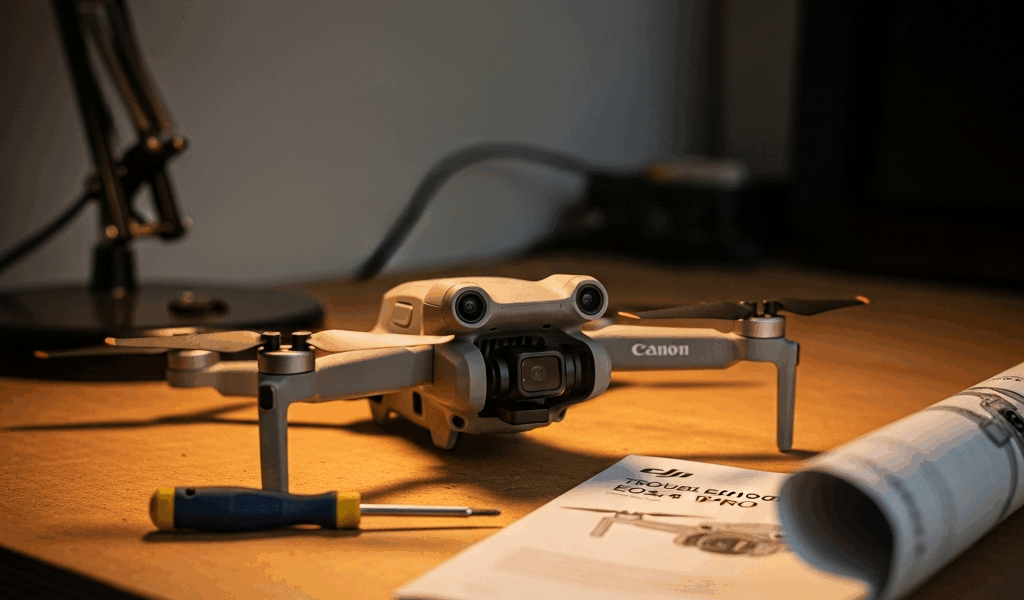
Why the Gimbal Stops Moving on the Mini 4 Pro
DJI Mini 4 Pro gimbal problems have gotten complicated with all the misinformation flying around in Facebook groups and Reddit threads. As someone who’s spent three years flying DJI drones across rooftop real estate shoots and wedding coverage, I learned everything there is to know about frozen gimbals the hard way. Today, I will share it all with you.
Here’s the thing most people miss: it’s rarely actually broken. Five causes account for nearly every case I’ve seen — the gimbal cover still attached, calibration drift after a rough landing, outdated firmware, thermal throttling from a long flight, or actual hardware failure. That last one is the only one requiring professional help. The rest? Fixable in under ten minutes, no panels opened.
So, without further ado, let’s dive in.
First Checks Before You Dig Deeper
Probably should have opened with this section, honestly. Half the time the fix takes 30 seconds flat.
Grab the Mini 4 Pro and look straight down at the gimbal from above. That black silicone protector cap — the one that shipped inside the box — needs to be completely off. Not just loose. Gone. I watched a guy at a fly-in spend 45 minutes deep in troubleshooting mode before someone noticed the cap was still resting on the stabilization arm, barely making contact. Barely is enough to ruin everything.
Power the drone completely down next. Hold the button until both aircraft and controller go dark. Wait ten seconds. Power back on. This clears firmware glitches that freeze the gimbal mid-communication handshake — a reboot fixes roughly 15% of these cases, which sounds low until it saves your shoot.
Once the drone is back on and you’re in DJI Fly, check the pre-flight checklist screen before tapping anything else. Red text means active error codes. “Gimbal Error” and “Gimbal Motor Overload” are two very different problems. Write down the exact code — that string of letters and numbers tells you whether you’re dealing with calibration drift, a communication lag, or something bent inside the housing.
Then power back off and physically spin the gimbal arm by hand. Does it rotate smoothly, or does it catch halfway through? Grinding resistance usually means debris — sand, a strand of hair, a grass fragment from a low pass — wrapped around the motor bearing. Perfect calibration won’t save you if something physical is blocking the mechanism.
How to Recalibrate the Gimbal in DJI Fly
But what is calibration drift? In essence, it’s the gimbal’s internal reference point shifting so the motors correct toward the wrong position. But it’s much more than that — after a crash or a major firmware push, the system genuinely loses track of where “level” is, and no amount of rebooting addresses that without a full recalibration.
Open DJI Fly. Tap the three-line menu in the bottom right corner — the hamburger icon, not the camera button. Scroll to “Camera,” then keep scrolling inside that menu until “Gimbal Settings” appears. Tap it. Three options show up: Gimbal Calibration, Gimbal Mode, Gimbal Smooth Track.
Tap “Gimbal Calibration.” The app immediately asks you to place the aircraft on a flat, level surface — and this is non-negotiable. Not mostly flat. Not close enough. A table, a concrete pad, a level workbench. I’m apparently obsessive about this step and a $12 bubble level from Home Depot works for me while eyeballing it never does. Don’t make my mistake. Five degrees of tilt fails the calibration or — worse — completes it incorrectly, leaving you with a horizon that looks worse than before.
Tap “Start Calibration” once the drone is properly positioned. The motors will buzz and whir for about 30 seconds. Do not touch the aircraft. Set it down and step back.
A green checkmark and “Calibration Complete” means you’re done. Red error message or “Calibration Failed” means the surface wasn’t level, something is physically blocking motor movement, or the hardware itself is damaged. Try once more on a different flat surface. Two consecutive failures means move on to firmware — continuing to retry calibration won’t change anything.
Firmware Update and App Cache Fix
Outdated firmware creates communication lag between the Mini 4 Pro and the remote. The gimbal doesn’t freeze permanently — it just stops responding to input, which feels identical to a broken gimbal. That’s what makes firmware issues so maddening to diagnose.
Check your current firmware version inside DJI Fly under the three-line menu, then “About.” Two numbers matter: Aircraft Firmware Version and Remote Controller Firmware Version. Write both down. Cross-reference against DJI’s official Mini 4 Pro firmware page. More than two releases behind? Overdue.
Updates run through DJI Fly directly. Before starting — battery above 40%, remote plugged into power via USB, phone connected to remote via USB-C cable. The app detects available updates automatically. Tap “Update” and leave it alone. Full firmware updates run anywhere from 5 to 15 minutes depending on file size and connection speed. Interrupting mid-update is how you brick the remote.
After the firmware finishes, force-close DJI Fly entirely, then clear cached app data. On iOS: Settings → General → iPhone Storage → DJI Fly → Offload App. Not Delete App — Offload. On Android: Settings → Apps → DJI Fly → Storage → Clear Cache. Reopen the app fresh. A clean session resolves gimbal response issues that somehow survive the firmware update itself. That was a hard-won discovery after a particularly frustrating afternoon in a parking lot.
When It Is a Hardware Problem and What to Do
Completed every step above and the gimbal still won’t move? You’re looking at physical damage now.
Hardware failure announces itself clearly. The gimbal rests at a weird angle even when powered down — not level, noticeably tilted. Or it produces a grinding or clicking sound when the motors try to engage, which is the motor fighting against a bent internal component. Or it moves freely in one axis while the other axis is completely frozen — roll works, pitch is stuck solid. Those symptoms point toward ribbon cable tears or motor bearing failures. Neither is field-repairable without DJI-level tooling.
Contact DJI Support through their official site. Two paths forward: mail the drone to the service center, or order a replacement gimbal module through the DJI parts store — at least if you’ve replaced gimbal modules before and know what you’re doing around ribbon cables. I’m not recommending the DIY route to anyone without prior experience, because one misaligned reconnection burns out the mainboard. Out-of-warranty gimbal repair through DJI typically runs $35 to $80 depending on what failed, with a 5 to 10 business day turnaround plus shipping both directions.
While you won’t need a full repair facility, you will need patience — attempting to disassemble the gimbal housing yourself without a heat gun and prior experience with thermal adhesive is how a $50 repair becomes a $200 mainboard replacement. The ribbon cables inside are genuinely fragile. That’s not a warning added for legal reasons.
DJI Care Refresh coverage changes the math entirely. Claims run $40 to $60 and cover accidental damage — faster than the standard repair queue, and the paperwork takes about eight minutes online. If your Mini 4 Pro is still within the coverage window, file the claim first before considering any other option.


Stay in the loop
Get the latest light drones updates delivered to your inbox.