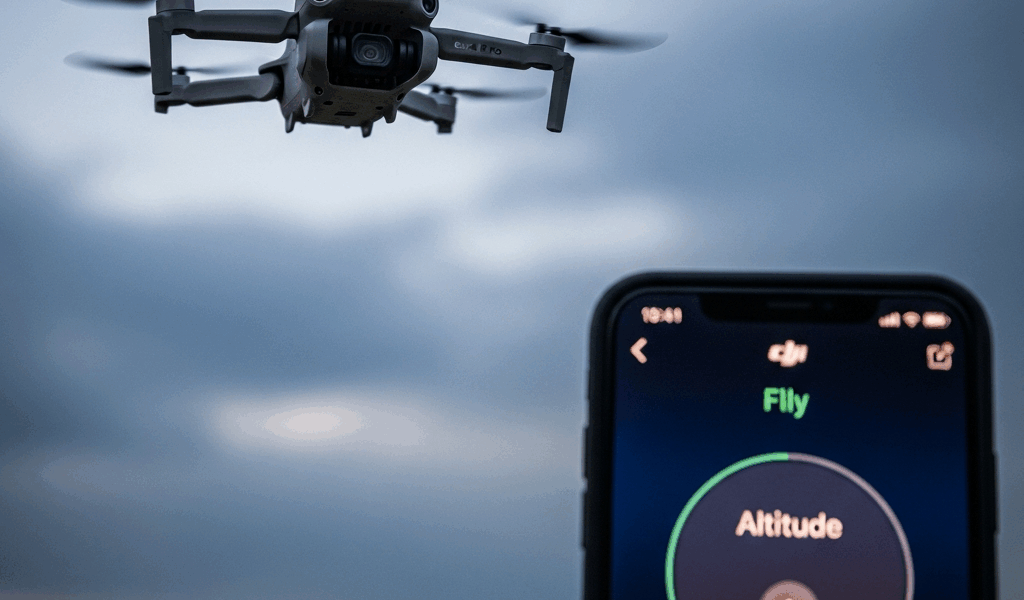
Why the Altitude Limit Keeps Reverting
The DJI Mini 4 Pro altitude limit issue has gotten complicated with all the misinformation flying around. As someone who’s been flying the Mini 4 Pro for two years now, I learned everything there is to know about this particular headache. Today, I will share it all with you.
Here’s the short version: your app is lying to you.
Two completely separate systems control your drone’s altitude ceiling — and they don’t always agree with each other. The first is the slider buried inside Safety settings, the one you’ve probably been dragging up and down for the last twenty minutes. The second is DJI’s GEO zone authorization layer, which will override whatever number you just set. Every single time.
Think of it this way. The slider is a suggestion. The authorization zone is law.
When you’re inside a GEO zone boundary, DJI’s servers push a regulatory cap straight to your app. That cap sits in a cached database on your phone. You adjust the slider to 500 meters, feel good about yourself, arm the drone — and the app quietly snaps you back to 120 meters. The local cache said “restricted.” Your preference didn’t matter.
There’s also a firmware mismatch scenario worth knowing about. Your drone’s onboard software and the DJI Fly app maintain separate altitude restrictions. If one updates before the other, they stop communicating properly. The slider moves. The drone ignores it entirely. That was my situation for about three weeks before I figured it out.
The legal default sits at 120 meters in most countries. The Mini 4 Pro hardware can actually reach 500 meters. Everything confusing about this issue lives in that gap.
Check Your Authorization Zone Status First
Probably should have opened with this section, honestly.
Before touching any settings, open DJI Fly and look at the map. Tap the map icon on the main flight screen, zoom to your location, and look for colored rings. These aren’t decoration.
Blue rings mean Warning Zones. You can fly here, but altitude changes come with restrictions — at least if you want them to stick without extra steps. The app will nag you. Expect it.
Red rings mean Restricted Zones. Don’t attempt to change altitude limits here. The system won’t permit it. Not ever. These zones cover hospitals, airports, critical infrastructure. Legally, the cap is the cap.
Yellow rings mean Enhanced Warning Zones. Altitude adjustments are possible, but you’ll need to request authorization before the slider will hold.
If you see any colored ring at your takeoff location, tap it. The app shows you the zone name, altitude ceiling, and authorization status. Look for a button labeled “Request Unlocking” or “Authorize Flight.” Do this before powering on the drone. Some zones won’t grant the altitude increase until you’ve submitted a request and waited for actual approval — sometimes a few minutes, occasionally longer.
I once spent forty minutes dragging that altitude slider around, genuinely baffled, only to realize I was parked inside a Warning Zone that needed manual authorization first. The actual authorization request took thirty seconds. Don’t make my mistake.
No colored rings at your location? You’re in unrestricted airspace. The problem is software-side, not regulatory. Keep reading.
How to Change the Altitude Limit in DJI Fly
So, without further ado, let’s dive in. Once you’ve confirmed your zone status, the actual process is pretty straightforward.
- Open DJI Fly and connect your remote controller to your phone — USB-C cable or wireless, both work fine.
- Tap the three-line hamburger menu icon in the top-left corner.
- Select “Safety” from the menu.
- Scroll down to “Max Altitude.”
- Drag the slider to your target altitude. The Mini 4 Pro accepts values between 20 meters and 500 meters.
- Release the slider and wait three full seconds. Watch the number. Does it hold? Good. Does it snap back down? Bad — your zone authorization hasn’t cleared yet.
- Close the Safety menu and return to the main flight screen.
- Wait 10 seconds before arming the drone. Let the setting propagate.
On both iOS and Android, the navigation path is identical. DJI kept this consistent across platforms, which is honestly rare and appreciated.
The critical tell: if the slider snaps back the instant you release it, an authorization zone is blocking your change. Do not arm the drone. Go back to the previous section and handle the zone authorization properly. The slider refusing to hold isn’t a bug — it’s the app keeping you from an illegal flight.
Fix It When the Setting Refuses to Save
You’ve verified clear airspace. You’ve handled any necessary authorization. The slider still won’t hold. Now we’re in cache territory.
On Android: Force-quit DJI Fly completely. Head to Settings > Apps > DJI Fly. Tap “Storage” and hit “Clear Cache.” Do not tap Clear Data — that wipes your flight logs and you’ll want those. Reopen the app, reconnect your controller, and try the altitude adjustment again.
On iOS: Force-quit the app by swiping up from the home indicator. Then delete DJI Fly from your home screen entirely. Reinstall fresh from the App Store. More aggressive than the Android method — but iOS app caches don’t always respond to standard clearing commands. I’m apparently an iPhone person and this exact process worked for me while the Android shortcut never did when I tested it on a friend’s Pixel 7.
After clearing cache, log out of your DJI account completely. Close the app. Wait 30 seconds — actually wait, don’t just tap through. Reopen, log back in. This forces the app to pull fresh authorization tokens from DJI’s servers, replacing the cached zone data with current regulatory information.
Now check your firmware versions. In DJI Fly, navigate to the device list and tap your Mini 4 Pro. The app version appears in the top-right corner. On that same screen, find “Firmware Version” for the aircraft itself. Write both numbers down. Visit DJI’s official support site and confirm both are current. A mismatch between these two versions will lock your altitude settings — that’s just how it works.
Firmware behind? Connect to Wi-Fi, open DJI Fly, go to the device update screen. Let the update finish completely. Do not interrupt it. Then power the drone back on and retry your altitude adjustment from scratch.
When You Cannot Raise the Limit at All
Sometimes the altitude lock is entirely real. But what is a Restricted Zone, exactly? In essence, it’s airspace where DJI and local regulators have decided the ceiling is non-negotiable. But it’s much more than that — it’s a legal boundary, not a technical glitch.
Red ring on your map means you’re probably near an airport, hospital, military installation, or controlled airspace. The solution is not finding a workaround. The solution is moving your flight location. Full stop.
That’s what makes DJI’s geofencing system endearing to us pilots who actually want to keep flying legally — it’s genuinely trying to keep everyone out of trouble, even when it’s maddening in the moment.
If you genuinely need to fly in controlled airspace, LAANC authorization is the legitimate path in the United States. Download the Aloft app — it’s free — or access FAA DroneZone directly. Submit a flight request. Wait for approval. There’s no shortcut here worth taking.
In unrestricted Class G airspace, this altitude limit issue is always fixable using the steps above. Every single time.


Stay in the loop
Get the latest light drones updates delivered to your inbox.