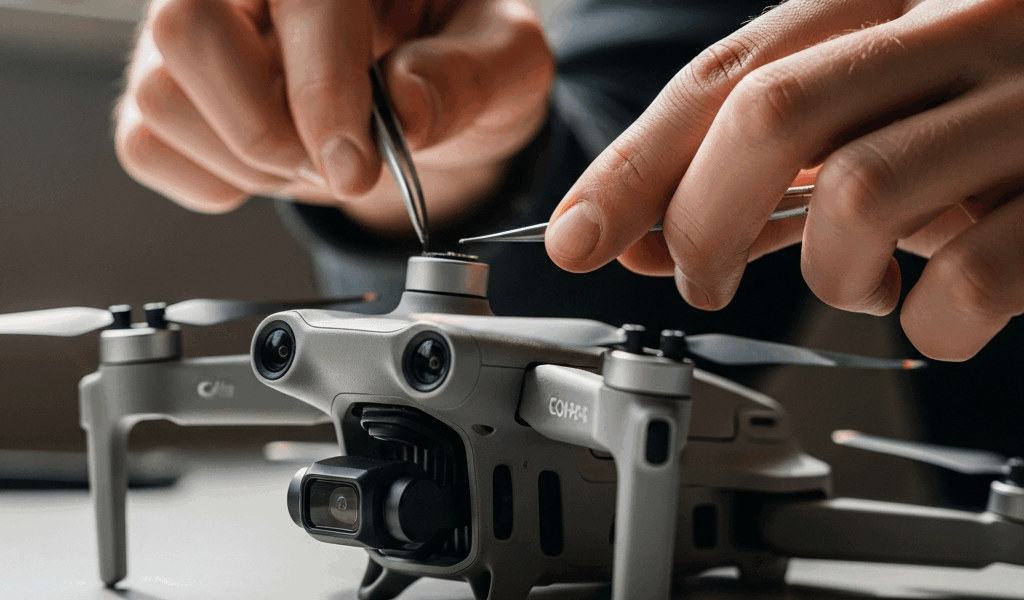
DJI Mini 4 Pro Gimbal Stuck — How to Fix It Without Sending It In
As someone who shoots with the Mini 4 Pro regularly, I learned everything there is to know about gimbal failures the hard way — sitting at my kitchen table at 10 PM, the night before a paid shoot, watching a $760 drone hold its camera at some bizarre downward angle while DJI Fly flashed an error I’d genuinely never seen before. Forty minutes later, I’d fixed it myself. What follows is exactly what I did, in the exact order I did it — mistakes and all.
This article includes affiliate links. We may earn a commission at no extra cost to you.
Check These Two Things Before Anything Else
Probably should have opened with this section, honestly. But when your gimbal is frozen, you’re already in panic mode — skipping past the obvious stuff entirely. So here it is, first, and I’m asking you to actually do both of these before touching anything else.
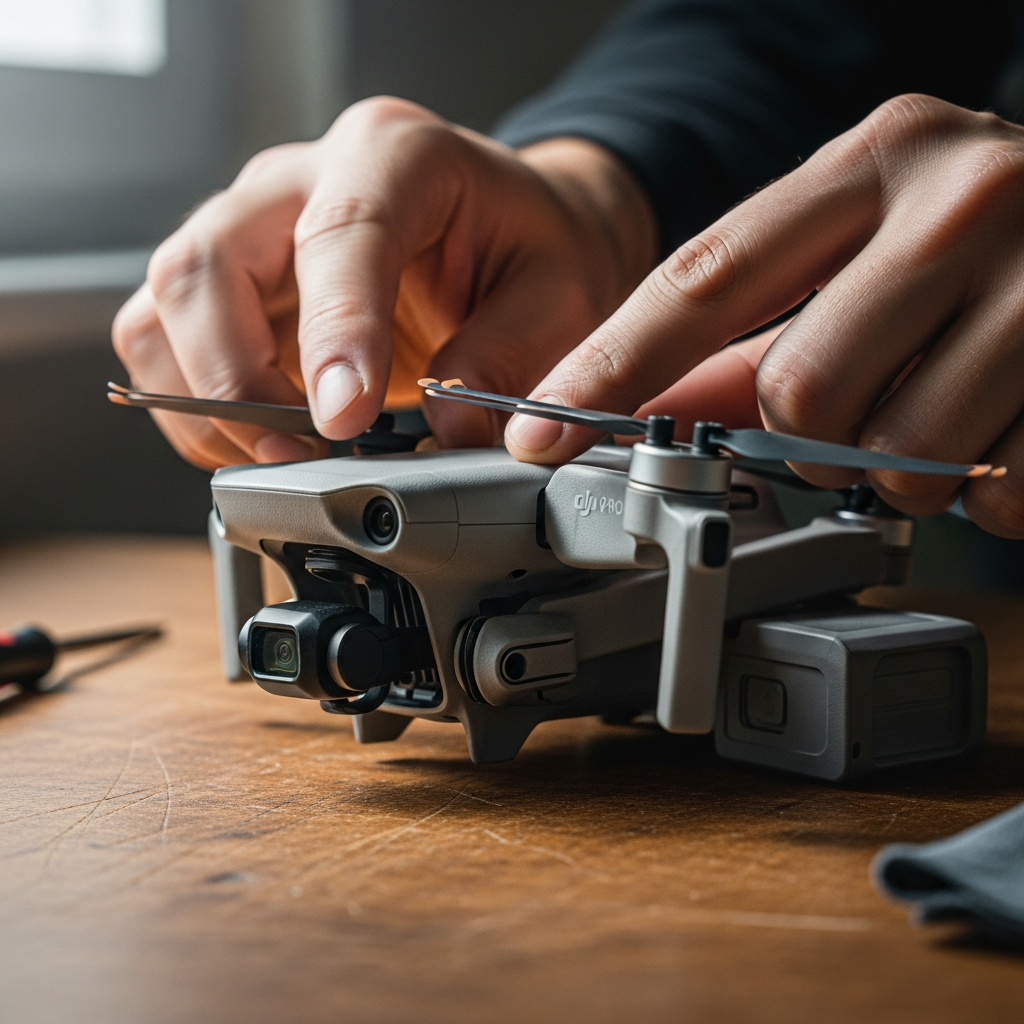
First: Is the gimbal protector still on? The Mini 4 Pro ships with a small orange plastic clip — its whole job is locking the gimbal rigid during transport. Easy to forget, especially if you yanked the drone out of your bag in a hurry. If that clip is still attached, the gimbal motor is fighting a physical barrier every single time it tries to initialize. The app reads this as a gimbal error. Take it off before you do anything else.
Second: Did you unfold the arms before powering on? The Mini 4 Pro runs a gimbal self-check within the first few seconds of startup. If the drone is still half-folded when you hit the power button, that check can fire at a bad angle — and lock up completely. Power off, unfold all four arms until they click, set it flat on a table, then power back on.
Those two things — protector still clipped on, arms not fully unfolded — account for roughly half the “gimbal stuck” posts I’ve seen across DJI’s forums and every relevant Reddit thread. Check them first. If neither one is your problem, keep reading.
Clean the Gimbal — Debris Is the Most Common Cause
Frustrated by a gimbal that kept stuttering even after a clean restart, I spent about twenty minutes hunched over the drone with a flashlight before I found it — one strand of hair wrapped around the tilt axis. That’s all it was. One hair. That’s genuinely enough to bind the motor and trigger a fault code.
Here’s how to clean the gimbal properly on the Mini 4 Pro:
- Power the drone completely off and pull the battery.
- Hold it at eye level in decent light — a window with natural light works better than a desk lamp.
- Gently rotate the gimbal by hand through its range: tilt up, tilt down, pan slightly left and right. You’re feeling for resistance that shouldn’t be there. Don’t force it through anything.
- Look at the gimbal base and the ribbon cable area. That joint between the gimbal housing and the drone body collects sand, dust, and random debris faster than you’d expect.
- Use short bursts of Falcon Dust-Off compressed air from roughly 4 to 6 inches away, aimed at the gimbal joints.
- No liquid cleaners. No WD-40. No isopropyl alcohol directly on the motors or ribbon cable. Liquid and gimbal motors don’t mix.
After cleaning, reinsert the battery, power on with arms fully unfolded, and watch the initialization sweep. If the gimbal moves through it cleanly, you’re probably good. If it stutters, freezes mid-sweep, or throws an error code — move to the next step.
Recalibrate Through DJI Fly App
The DJI Fly app has a built-in gimbal calibration tool — and it’s more useful than most people assume. This was the step I almost skipped because I figured calibration was only for drift problems, not a fully stuck gimbal. Wrong. Calibration can reset a motor that’s gotten confused about where its center position actually is.
How to Run Gimbal Calibration
- Connect your phone to the RC-N1 controller (or RC2, if that’s your setup) and open DJI Fly.
- Power on the Mini 4 Pro and wait for a full connection.
- Tap the three dots in the upper right to open the settings menu.
- Go to Control, then scroll down to Gimbal Calibration.
- Tap Auto Calibration and set the drone on a completely flat, stable surface — a table away from foot traffic is ideal. Don’t hold the drone in your hand during this.
- Let it run without touching anything. The whole process takes about 60 seconds.
If You See Error Code 40002
Error 40002 during calibration means the gimbal motor hit an obstruction — or couldn’t complete its range-of-motion check. Go back and repeat the cleaning step. Then try calibration again. If 40002 comes up a second time, either debris is still present or there’s a mechanical issue with the motor itself. Don’t keep hammering the calibration button — you won’t get a different result without fixing the physical cause first.
Don’t make my mistake. I ran calibration the first time with the drone sitting on a throw pillow on my couch. The surface flexed slightly during the process and the whole thing failed with a vague tilt error. Flat and stable really does matter here — more than it probably should.
Firmware Update Can Fix Software Gimbal Errors
Not every gimbal stuck error is mechanical. Some are software bugs — and DJI has pushed firmware updates specifically targeting gimbal behavior on the Mini 4 Pro. If you haven’t updated recently, this is worth a few minutes of your time.
How to Check and Update Firmware
- Open DJI Fly and connect to the drone.
- Tap the drone icon at the top of the main screen, then look for the firmware version number under the aircraft status section.
- If an update is available, DJI Fly will flag it with a notification. Tap to update — keep the drone powered and connected the entire time.
- The update runs 5 to 10 minutes. The drone restarts automatically when it’s finished.
There were known gimbal issues in earlier Mini 4 Pro firmware builds — specifically around how the motor handled cold-temperature initialization and how it responded when controller input lagged. DJI addressed those in later releases. Running outdated firmware while troubleshooting a stuck gimbal is leaving an obvious potential fix completely on the table.
After updating, power cycle everything: drone, controller, close and reopen DJI Fly. Fresh connection, fresh initialization. Then test the gimbal again.
When You Need DJI Repair — And What It Costs
If you’ve pulled the gimbal protector, cleaned with compressed air, calibrated twice on a flat surface, updated firmware, and the gimbal is still stuck — or worse, grinding — stop here. You’re past software fixes and minor debris. Two specific hardware problems won’t respond to anything you can do at home.
Damaged Ribbon Cable
The gimbal connects to the drone body through a thin flex ribbon cable running along the gimbal arm. Kink it, tear it, or break a solder point — and the gimbal loses signal mid-operation or fails to initialize entirely. You can sometimes spot damage with a magnifying glass: look for creases, discoloration, or visible tears. Replacing it means partially disassembling the drone. Not a beginner repair.
Burned Out Gimbal Motor
A crash where the gimbal hits the ground hard can physically damage the tilt or roll motor. A burned-out motor sounds different from normal gimbal movement — there’s a distinct grinding or clicking during initialization that isn’t there on a healthy unit. No home fix exists for that.
What Repair Actually Costs
DJI Care Refresh for the Mini 4 Pro runs $99 per year — covers up to two replacement units annually, with a service fee around $49 per incident for crash or flyaway damage. If your Care Refresh is active, file the claim at care.dji.com and ship it in. That’s your fastest path.
Without Care Refresh, out-of-warranty gimbal repair on the Mini 4 Pro typically lands between $120 and $180, depending on whether it’s a cable swap or a full gimbal assembly replacement. DJI’s online repair portal lets you submit your serial number for an exact quote before committing to anything.
Third-party shops that specialize in DJI hardware — not general electronics repair — can sometimes handle gimbal cable work for around $80 to $100. Just make sure they’re using OEM parts. Generic ribbon cables wear out fast on a gimbal that’s moving constantly throughout every flight.
That’s what makes the at-home fix sequence worth trying first — clean the gimbal, recalibrate on a flat surface, update the firmware, in that order. For most people reporting a Mini 4 Pro gimbal stuck error, that sequence is enough. No shipping, no service fees, no waiting.


Stay in the loop
Get the latest light drones updates delivered to your inbox.